Overview
We will create a basic 3-column layout with some extras. We will be creating Home and About pages for the website. You may choose any theme you desire. See simplified versions of what we will create: Home | Content
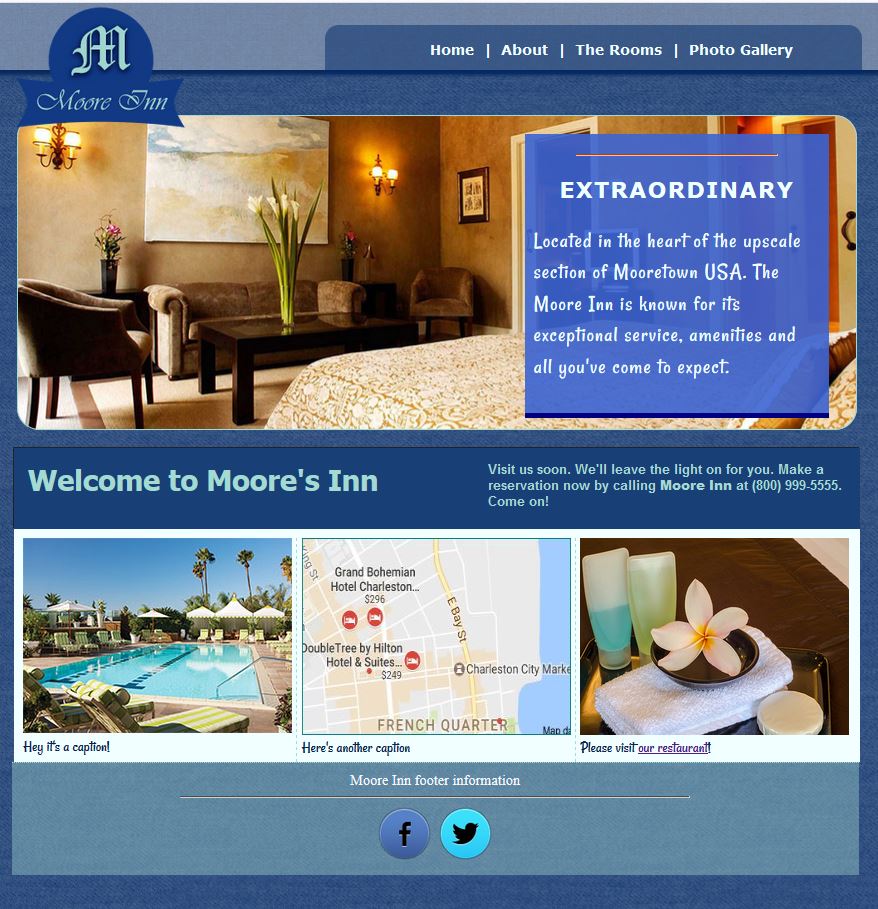
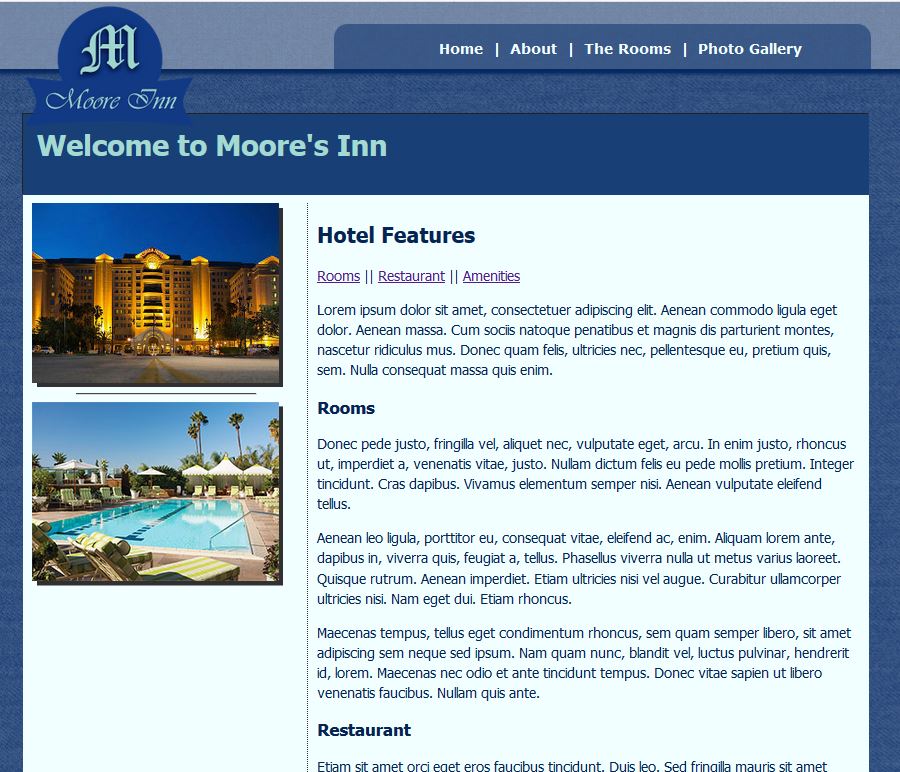
Note: I created this layout a few years ago, so it's heavy on colored background. By contrast, look at Hyatt's website and note how blue is used as an accent, and there is a LOT OF WHITE and neutral grays.
Looka here. Same thing for Marriott...
Get started with HTML
Here is a wireframe showing the structure. Don't worry about the CSS yet. Your HTML will initially be in normal flow.
- Let's get a surefire start in class on 10/2/24:
- Inside your assignment folder (with the digits), create a folder called chap6_layout.
- Inside "chap6_layout", create a folder called images.
- Together we will code the HTML according to the wireframe.
- As time permits, we'll use a few placeholder labels and borders/backgrounds to identify the parts to keep you on track.
- Do these things at home on Friday 10/4. They must be ready by Monday, 10/7/24.
- Create a CSS page
- Decide on a theme for your website. For example, mine is a fictitious hotel.
- Come up with a color scheme and paste the hexadecimal code at the top of your CSS.
- Find about 4-5 images and save them in your "images" folder. One of your images should be wide enough to crop into a hero image. (Don't worry about resizing now. We will size and insert the images during class.)
- Use a website such as icons8.com to find a few social media icons. Save in your "images" folder.
- Create a unique logo for your website. You have these choices.
- Create from scratch.
- Find one from vecteezy.com. However, you must modify it in Photopea to customize it.
- Create a free logo from a site such as LogoMaker.
Continuing HTML and CSS coding
We can start this in class on Monday, Oct 7.
- I will guide you through creating more of the HTML.
I will also guide you through creating these CSS declarations:
- body
- #wrapper
- #topArea
- header
- The hero image
Let's scan this informative easy-to-read article about hero images. - If time, we'll end the class with managing images.
- Resize logo approximately 200px. If necessary, crop so that there is no empty space around edges.
- Resize and crop 2 of your images to ______ width.
You can decide on a height for your two images; but they must be uniform. - Crop the hero picture to 950px by approximately 350px
- Resize social media icons around between 25 - 50px. Your choice.
... Continue...
- We will start by completing the #topArea id.
- I will guide you through the remaining HTML.
- There are some additional material and styles as well.
Summary of material not in the chapter
Google Fonts
- Go to www.fonts.google.com
- Select the category you wish, or search for a specific font
- Click the + sign to select the google font of your choice(e.g. Lato):
- Copy the link of the selected style from the window that appear on the right side of the screen. Paste in the head area of your webpage.
- In your CSS, apply the font-family rule to selector(s) of your choice.
Link to an image
To make a hyperlinked image, use the <img> element as well as the <a> element with the href attribute. It is the same basic syntax as all links. Here is an example.
<a href="http://www.facebook.com"><img src="iconFB.png" alt="button"></a>
Figure Element
MDN website has a perfect and picturesque description of the figure and figcaption elements. Let's take a look. AND, one important thing to remember is that figure has a default 40px left & right margin, with top& bottom of 1em.
Interactive Google Map
- Open maps.google.com and type the location you wish to embed.
- In the top left, click Menu.
- Click Share or embed map.
- Click the Embed map tab.
- To the left of the text box, pick the size you want by clicking the Down arrow. We will use Small.
- Copy the text in the box and pasted into your HTML code. We will paste it in one of the <figure> elements.
Modern borders
We'll talk about this. Enjoy them, but don't treat them like magic's happening!
css-box-shadow-examples
Refine
We will spend a little time on Friday refining and polishing the design. For instance, don't forget to remove the backgrounds and border that were created for troubleshooting and marking spots.
Submit:
Submit by linking to your assignment page with Chapter 6 Layout. Due by October 11th 9pm.